
Getting Started with myDoo — From Install to Your First Conversation
Install mydoo, have your first conversation in Doo Table, and add Codex and Gemini as extensions — all in one walkthrough.
If you already use Claude daily, opening mydoo for the first time won't feel unfamiliar.
Claude is right there when the screen loads. The only thing that's different is he runs on your computer. Instead of opening a Claude.ai tab in your browser, he works inside your own folder. That one difference is what makes the conversations accumulate instead of reset.
This guide walks you through installing mydoo, having your first conversation in Doo Table, and adding Codex and Gemini as extensions.
1. Install
Download the installer from mydoo.ai. Both Windows and macOS are supported.
Run the installer. mydoo opens a few moments later — no extra setup required.
Do I need Claude Code separately? Claude Code is mydoo's default AI. When you use mydoo, Claude Code does the work — connected through your own Claude account and plan. mydoo doesn't bundle Claude for free. If you already use Claude, it usually carries over with no extra steps. The full picture is in How myDoo Works With LLMs.
2. What you see first — Doo Home
When mydoo opens, you land on Doo Home.
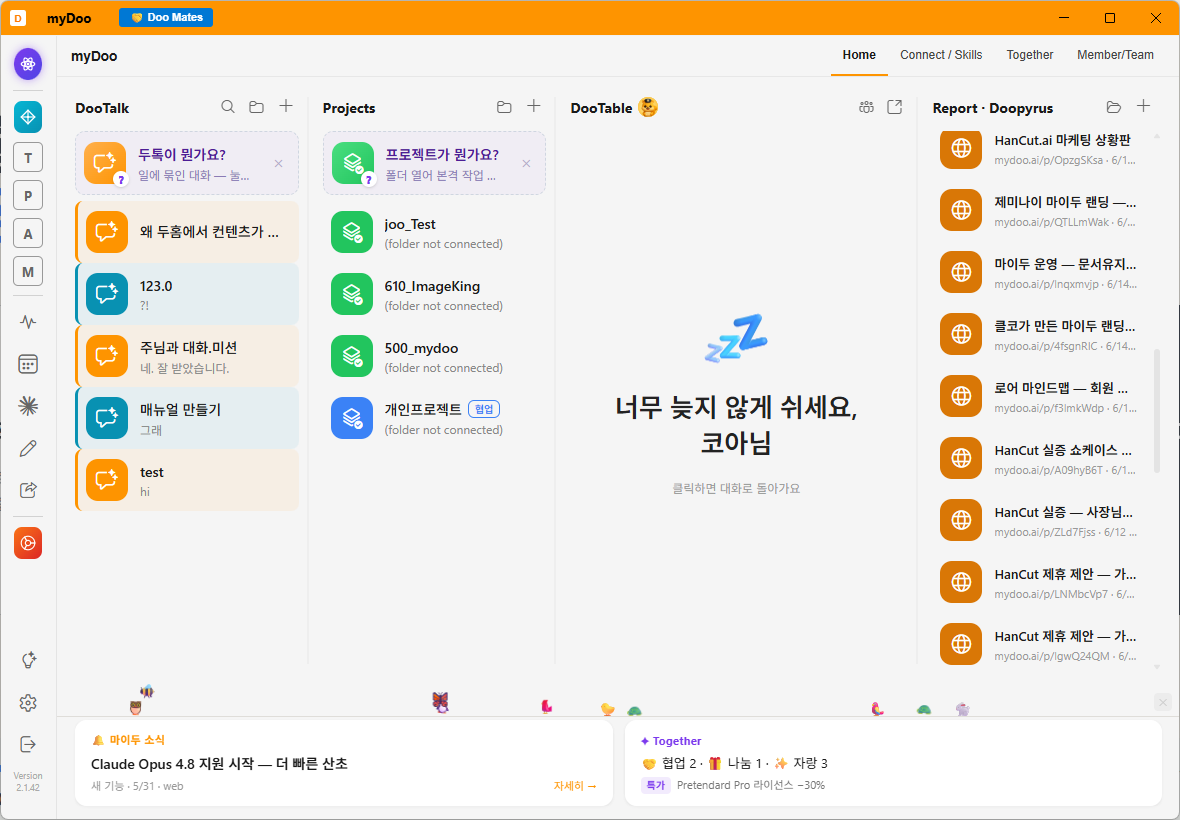
Doo Home is the front door. Active work (Doos), AI agent status, and collaborator activity are all visible here. It starts empty — that's expected. This is a space that fills as you use it.
Left sidebar icons:
- Doo Home — Full overview
- Doo Table — Think with AI before committing to a project
- Doo Desk — Open a project folder and make things
- Doopyrus — Turn finished work into a shareable link
3. Doo Table — where your first conversation starts
For a first conversation, Doo Table is the right place.
Doo Table lets you talk to Claude Code without opening a project. "What do you think of this idea?" "Clean up this paragraph." "Is this approach sensible?" — casual, exploratory conversation.
Click Doo Table in the left sidebar. A chat panel opens. Type anything and Claude Code responds.
4. Adding Codex and Gemini as extensions
Claude Code alone is solid. Adding the other two makes it considerably more capable.
In Doo Table (or Settings), find the Extensions section. From here you can install Codex and Gemini:
- Codex — Strong at coding and technical implementation. Recommended if you write code.
- Gemini — Strong at real-time web search and current information. Recommended for research work. (Note: as of June 2026, Gemini can no longer be connected with a personal Google account due to a Google policy change, so it won't connect even if installed. Proceed with Claude Code and Codex. The full story is in How to Connect the Three AIs.)
Extensions follow the same principle as the default: you sign up for each service yourself and use it on your own plan. No account yet? mydoo works fine without them — add them when you have a reason.
Once installed, three AI buttons appear at the top of Doo Table. Turn all three on and you're in AI Conference mode.
5. From Doo Table to Doopyrus — publish what you discussed
If a conversation in Doo Table produces something worth sharing, turn it into a webpage on the spot.
Type in the chat:
"Summarize what we just discussed and make it a Doopyrus."
Claude organizes the conversation, converts it to a webpage, and returns a link. Paste it into Slack, send it over KakaoTalk — anyone with the link opens it in a browser. No file attachment needed.
Ideas, team updates, quick briefings — from a Doo Table conversation to a shareable page in under a minute.
What's next
You've had your first conversation and added extensions.
Curious where work gets registered and talked through? Read DooHome & DooTalk — You Register Work, and It Becomes a Conversation next.